A builder installs a kit sold as DDR5-6000, opens the system information screen, and sees 4800. The first question is whether that number is the current transfer rate, a stored default profile, or a clock reading shown in MHz. Each points to a different next step. Treating all three as a failed memory module can lead to unnecessary returns and inconsistent finished-PC specifications.
If DDR5-6000 is running at 4800 MT/s, the common explanation is that the system booted using a standard default setting while the 6000 MT/s setting is stored as an Intel XMP or AMD EXPO profile. That is a starting diagnosis, not a guarantee. The exact kit, CPU, motherboard, BIOS, and number of modules determine whether the higher setting is available and stable.
DDR memory transfers data twice per clock cycle. A reported DRAM clock near 2400 MHz corresponds to about 4800 MT/s; a clock near 3000 MHz corresponds to about 6000 MT/s. Some tools show the clock, while others show the effective transfer rate. Product listings often call 6000 “MHz,” although MT/s is the clearer unit for the data rate.
Read the label beside the number. In Windows Task Manager, the Performance > Memory speed field normally reports the effective memory speed. In CPU-Z, the Memory tab's DRAM Frequency is a clock reading, so double it to compare with a DDR5-6000 listing. The SPD tab shows stored module profiles, which may differ from the setting currently in use. A BIOS screen may show both the module's SPD default and a separate current or target speed; do not compare the wrong fields.
| What you see | Likely meaning | Next check |
|---|---|---|
| Task Manager speed around 4800 MT/s | The system is currently running at a lower transfer rate | Check the active XMP or EXPO setting and the kit's stored profiles |
| CPU-Z DRAM Frequency around 2400 MHz | Approximately DDR5-4800 effective data rate | Check whether the intended performance profile was applied |
| CPU-Z DRAM Frequency around 3000 MHz | Approximately DDR5-6000 effective data rate | No speed mismatch; continue with stability validation |
| BIOS lists SPD 4800 but current 6000 | The module's default and active profile are being shown separately | Verify the operating speed in BIOS or the OS after boot |
These numbers are examples. Use the actual fields and units in the tool supplied with the system.
The module stores standard operating information in SPD. The motherboard reads it during startup and selects settings it can use for initial operation. A DDR5-6000 kit can therefore have a DDR5-4800 default and a separate 6000 MT/s profile. Other kits can have a different default speed; do not assume 4800 is universal.
The number on the retail box generally identifies a rated configuration tested by the memory supplier under stated conditions. It does not mean every compatible computer automatically applies that setting. A Kingston DDR5 module datasheet, for example, lists a 4800 MT/s JEDEC default alongside faster XMP and EXPO profiles. That example illustrates how a product can legitimately carry both numbers.
For system integrators, record two specifications: the default boot setting and the approved operating setting after BIOS configuration. A finished PC advertised with DDR5-6000 should be tested at 6000 on its production CPU, motherboard, BIOS, and module layout. Otherwise the label describes a kit capability rather than the shipped system setting.
Intel XMP and AMD EXPO are stored memory profiles for supported platforms. Selecting a profile in BIOS can apply a defined data rate, timings, and voltage together. The motherboard then trains the memory for that CPU, board, and module configuration. XMP and EXPO are performance settings beyond the basic default operation; their presence does not guarantee that every platform will complete training at the listed rate.
The exact kit may contain XMP, EXPO, both, or neither. Check its part number and SPD data instead of assuming support from the words “DDR5-6000.” A motherboard may expose a profile under a vendor-specific menu name. The board manual and BIOS screen are the right references for that model.

Use one controlled sequence before changing manual timings or voltages:
Write down the exact memory kit part number, total capacity, capacity per module, and the speed currently reported by BIOS or the OS.
Confirm that the CPU and motherboard support DDR5 and that the installed BIOS is approved for the target platform.
Check the motherboard manual for the recommended slots. A two-module kit should be installed in the board's specified pair.
Inspect the kit's available XMP or EXPO profile and compare it with the intended 6000 MT/s order specification.
Select the appropriate profile in BIOS, save, and allow the system to complete memory training. Follow the board maker's instructions if the first boot takes longer than usual.
After boot, confirm the active speed. Run the memory and application tests used to approve that PC configuration.
Keep a record of the before and after readings. If the system returns to 4800 after a failed start, the profile may have been rejected and the BIOS may have restored a default setting. Verify what the BIOS now says rather than assuming the selection remained active.
Check the exact memory SKU first. A product family can include different profiles, and a module sold at a given speed does not prove that both XMP and EXPO are stored on every version. The module's SPD information or formal datasheet should identify the available settings.
Then check the motherboard and firmware. The memory-profile option may be in an advanced BIOS menu, may use a different name, or may be unavailable on a restricted prebuilt-PC platform. A board BIOS that predates a processor or memory revision can also behave differently from the version used in supplier testing. Record the current BIOS version before changing it and use the board maker's update procedure where an update is appropriate.
If the platform does not offer the profile needed for 6000 MT/s, the quotation should state the speed that the finished system can actually support. A memory replacement alone may not change that platform limit.
Separate a configuration issue from a stability limit. Confirm that the setting was saved and that the active profile matches the installed kit. If training fails, check the board's diagnostic indication and recovery instructions. Return to defaults before another controlled attempt.
Review the CPU memory specification, motherboard memory support page, QVL entry, BIOS version, and DIMM placement. A QVL result is tied to a tested combination; a different module count or BIOS can change the outcome. Four installed DDR5 modules can place a greater load on the memory controller than two, so a profile validated with two modules should not be assumed to work with four. Mixing two separately purchased kits creates another unqualified configuration, even when their labels look identical.
If the profile boots but the system later crashes or reports memory errors, do not ship it as validated DDR5-6000. Run the agreed stress test and real application workload. Where a lower setting is accepted, document its exact speed and settings in the system specification and obtain approval for that change.
| Symptom | Check first | Decision for a builder |
|---|---|---|
| 4800 at first boot | Stored profile and BIOS selection | Test the intended profile on the approved platform |
| Profile option absent | Exact module SKU, SPD, BIOS menu, platform limits | Confirm whether 6000 is an available system configuration |
| No boot after profile selection | Training, slot positions, BIOS, CPU and board support | Recover to defaults; retest against the qualification matrix |
| Boots at 6000 but fails under load | Memory test, application test, module count and cooling | Hold the SKU until a stable setting is approved |
| Previously worked, then shows 4800 | BIOS reset or update, changed modules or settings | Reapply and revalidate the approved profile |
A one-off BIOS adjustment does not solve the issue for a production line. Add a memory setting check to the build image or final inspection process. Record the CPU, motherboard model and revision, BIOS version, exact kit part number, number of installed modules, active profile, measured speed, and stability test result for each approved configuration.
Use a retained sample and a change-notice process. If a supplier changes DRAM components, PCB revision, SPD data, or profile values, decide whether the system needs retesting. The same retail name should not silently cover an untested change in the specification that matters to the build.
For service teams, a short intake form is more useful than asking the customer to “enable XMP” immediately. Request a photo or text copy of the installed memory label, motherboard model, BIOS version, slot population, screenshot of the current speed, and whether the problem is simply a lower reading, a failed boot, or crashes after the profile is enabled. That prevents a settings change from masking a different fault.
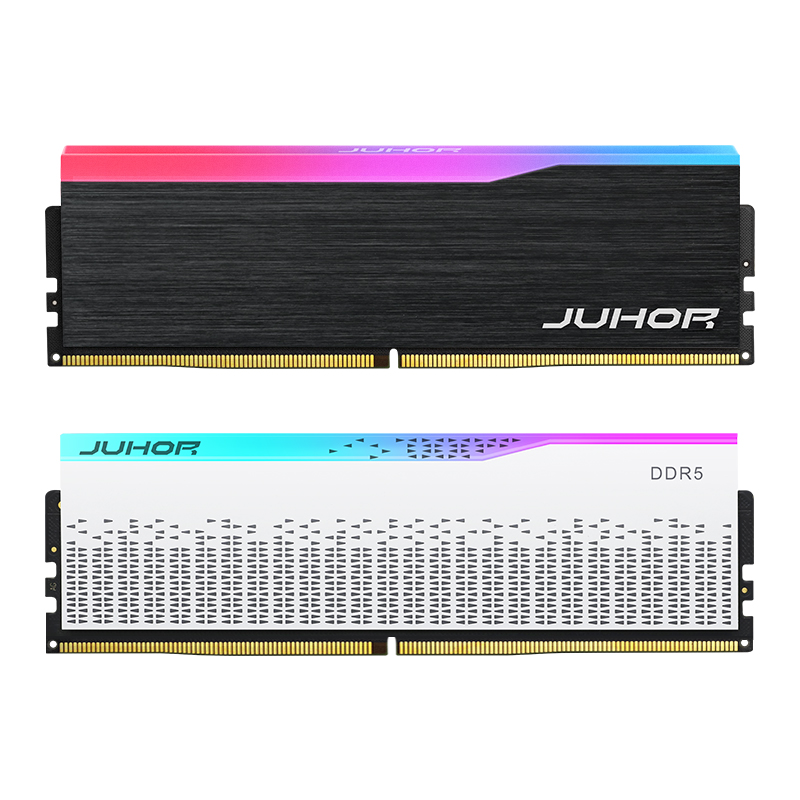
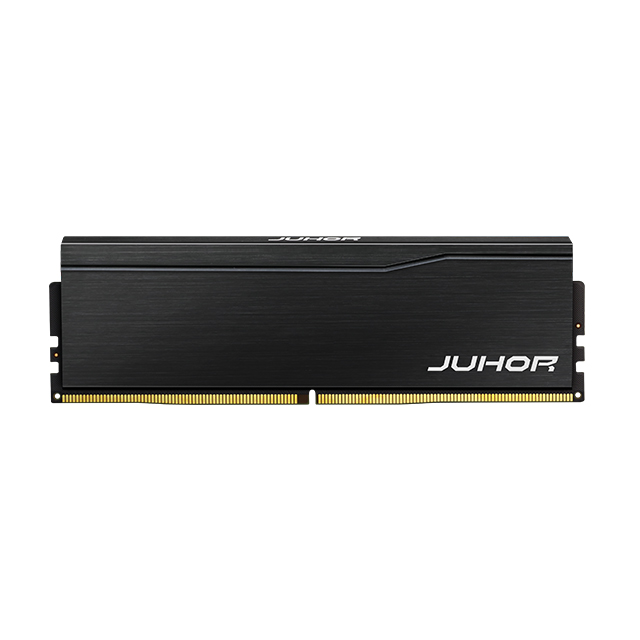
JUHOR's Star Domain black DDR5 desktop memory page and RGB Star Domain DDR5 page list 6000 among their speed options. Their public descriptions cover different capacities, colors, and profile claims, but do not establish one identical configuration for every listed option. Ask JUHOR to confirm the exact 6000-rated SKU, kit capacity, default SPD setting, supported XMP or EXPO profile, voltage, and tested motherboard/BIOS combination before writing a finished-PC speed claim.
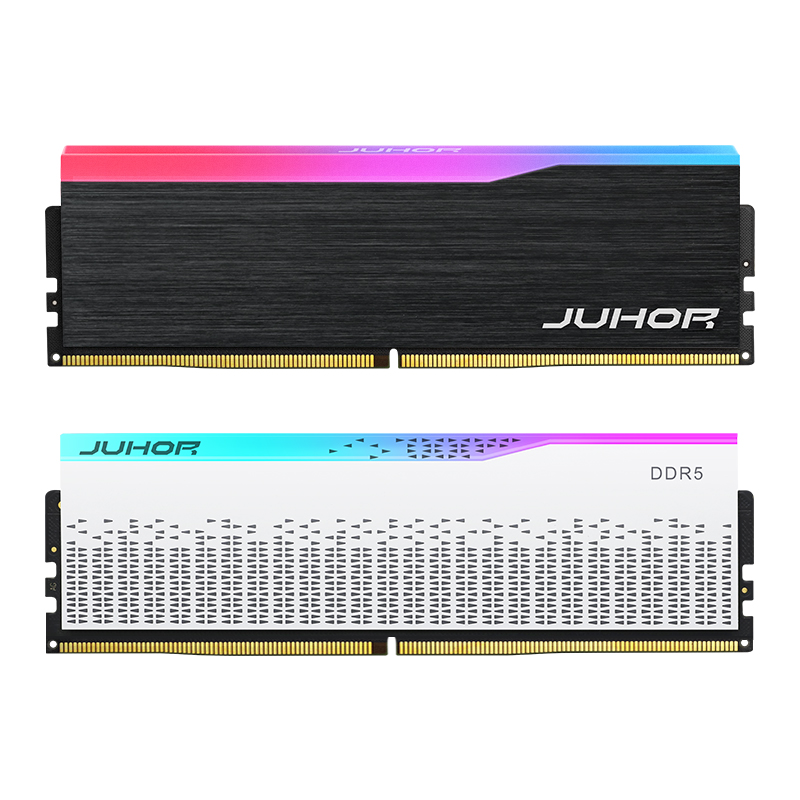
If the question is whether 6000 or another frequency should be carried as a system SKU, JUHOR's DDR5 latency explanation adds context after the platform and profile have been confirmed.
Send one row per PC model: CPU, motherboard and revision, BIOS version, operating system, memory slot layout, proposed JUHOR part number, total capacity, modules per kit, observed speed, desired 6000 MT/s profile, and quantity. State whether the system boots at 4800, fails to train at 6000, or becomes unstable later. Include the planned application workload and the acceptance test.
The supplier's answer should identify the confirmed default and profile settings, tested platforms, any necessary BIOS condition, sample availability, and the action if the requested combination has not been qualified. Purchasing and after-sales teams can then work from the same configuration record.
Not necessarily. It may be operating at a stored default setting. Check the active rate and the kit's XMP or EXPO profile before diagnosing a fault.
No. Default SPD settings vary by SKU. Read the exact module datasheet or SPD information.
CPU-Z's DRAM Frequency near 2400 MHz corresponds to roughly 4800 MT/s because DDR transfers data twice per clock cycle.
It corresponds to roughly 6000 MT/s. Check the tool's field label before treating the reading as a shortfall.
No. The exact memory profile must be present, and the CPU, board, BIOS, and module layout must support stable operation at that setting.
The setting may not have been saved, or memory training may have failed and the BIOS may have restored defaults. Check the active BIOS setting and the board's diagnostics.
They can. Four modules may run at a lower stable speed than a two-module kit on the same CPU and board. Validate the exact slot population.
Publish the speed tested on the complete production configuration, with the required profile enabled and stability verified.


4 / F, No. 18, Langkou Industrial Park, Langkou Community, Dalang Street,Shenzhen,Guangodng , China